
&w=3840&q=75)
docs
Everything happens in the app settings in Jira. Only the optional storage connection needs your own cloud.
No storage needed to start
Each takes a minute to check. Only storage needs anything outside Jira.
Jira admin or site admin. Without one of these roles, App settings does not appear next to Regulit.
Regulit starts switched off. A fresh install checks nothing until you turn on the master switch in App Settings.
Nothing is retroactive. A rule applies to new uploads. Files already on work items stay.
Storage is optional. Allowed and Blocked work without it. Without storage, Needs approval is handled like Blocked.
In Jira
Open Apps in the left sidebar, click the three dots next to Regulit for Jira and choose App settings. Five tabs appear.
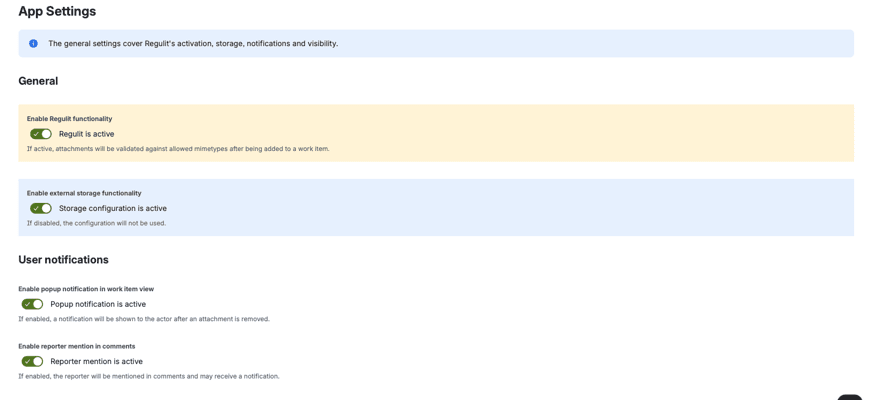 1. Set the defaultSetting for undefined file types covers every type you have not set. It ships as Needs approval, which without storage means removed.
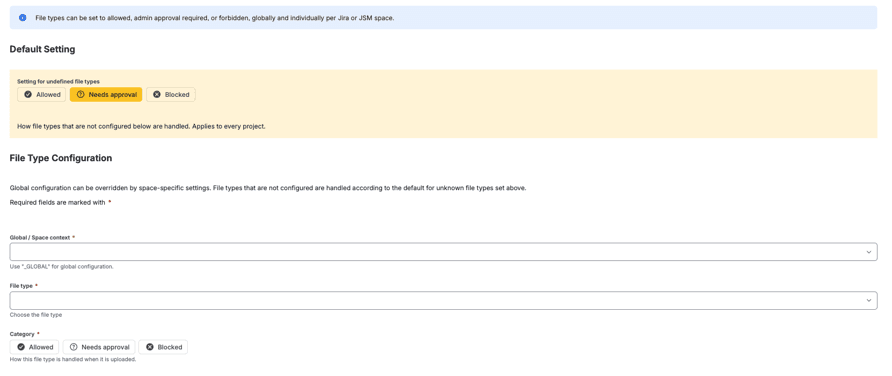 2. Set your file typesOn the File types tab, choose the global context, a file type and a category. A space that needs something else gets an override for that type.
Without it, Regulit goes by the type Jira reports and the extension. With it, a program renamed to .pdf is caught by its first bytes.
Storage
Optional. It decides whether a file set to Needs approval can be held and restored.
Three providers, one connectorAmazon S3, Google Cloud Storage or Azure Blob Storage. You deploy a small connector in your own cloud, and every request to it is signed. Without it, removal is finalFiles still come off the work item, with a comment and a log entry. Needs approval is handled like Blocked, so nothing can be restored.
Show the rule before the upload, and say why a file went after it.

Fixed values and defaults, so nobody is surprised later.
| Jira admin or site admin | Required | Without it, App settings does not appear |
|---|---|---|
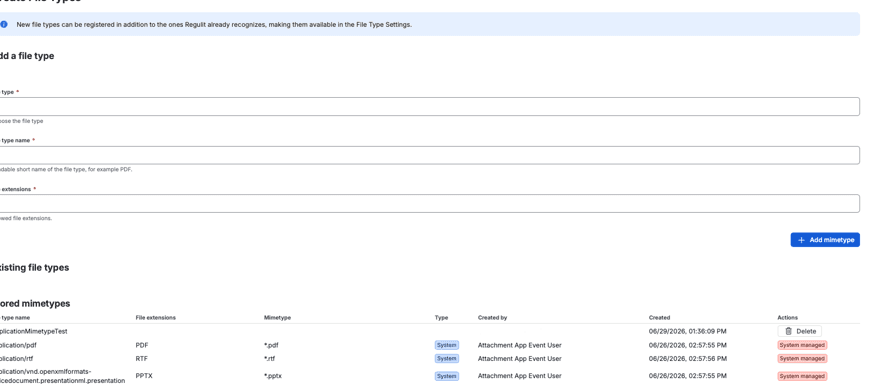
| 22 file types | Preset | Add more under Create File Types |
| Three categories | Per file type | Allowed, Needs approval, Blocked. Globally and per space |
| 50 MB | Fixed limit | Larger files are not read. Under Needs approval they are removed without a copy |
| 10 days | Default review window | Set as Max. days to keep in Storage Settings |
| The shared secret | Shown once | Lost it? Delete and recreate the storage configuration |
No. Allowed and Blocked work without it. Without storage, Needs approval is handled like Blocked and nothing can be restored.
Jira admin or site admin, to install and configure Regulit.
No. A fresh install starts switched off and checks nothing until you turn on the master switch.
They follow Setting for undefined file types, which ships as Needs approval. Without storage that means removed, so set it before you switch Regulit on.
It is shown only once. Delete the storage configuration and create it again to get a new one, then update your connector.
No. It stops the checks. Your file type settings stay as they are.
Set one type to Blocked in a test space, switch Regulit on and upload a file. Storage can wait until you want the approval queue.
&w=3840&q=75)
&w=3840&q=75)
&w=3840&q=75)