
Restrict attachment file types in Jira Cloud
Jira Cloud has no setting for allowed file types. You can limit the file size or take away the Create Attachments permission, but you cannot allow PDF and block ZIP. REGULIT adds that rule: a category per file type, for the whole site and per space.
For Jira Cloud and Jira Service Management
Attachments are on or off.
Three things in Jira Cloud touch attachments. None of them sets a rule per file type.
Size and ZIP preview.
The attachment settings cover the maximum file size and whether ZIP contents can be previewed. Nothing in them looks at the type.
The Create Attachments permission.
The permission scheme decides who may attach files at all. Taking it away stops every upload, the useful ones included.
A feature request, closed.
Atlassian closed the allowlist request JRACLOUD-61024 as Won't Fix in 2024. A newer one, JRACLOUD-95267, is gathering interest.
Automation removes files. It does not control them.
A rule with the Delete attachment action is the usual workaround. It helps, with three gaps.
It trusts the name.
The condition matches the file name or the type the upload declared. A renamed file carries both, and passes.
Nothing is kept.
Delete attachment removes the file for good. There is no hold, no review and no way to put it back if the rule was wrong.
The record is yours to build.
Automation logs that a rule ran. A list of removed files with uploader, type, rule and time is something you assemble yourself.
A category for every file type.
Each file type is Allowed, Needs approval or Blocked. 22 common types are preset, and you add your own by mimetype and extension. Types you never set follow one default.
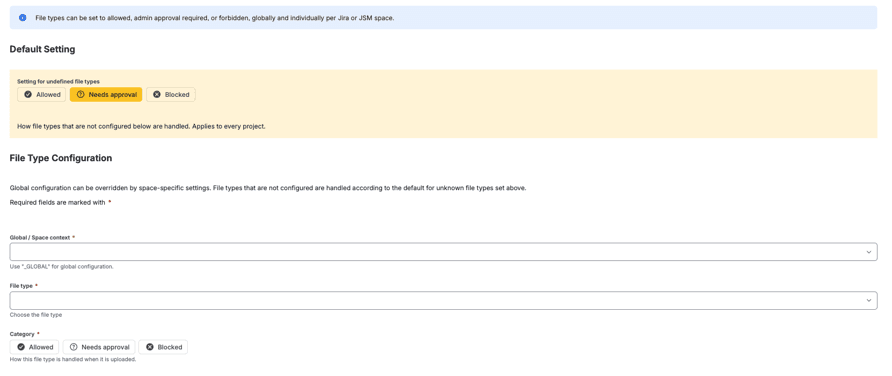
Override it for one space.
The global rule covers the site. A space that needs something else gets an override for that type, and every other space keeps the global rule.
Set once.
Pick the space and the file type, choose the category and tick Override global configuration.
Stricter wins.
When the reported type and the extension disagree, the stricter rule applies.
From the next upload.
A rule applies to new uploads. Files already on work items stay.
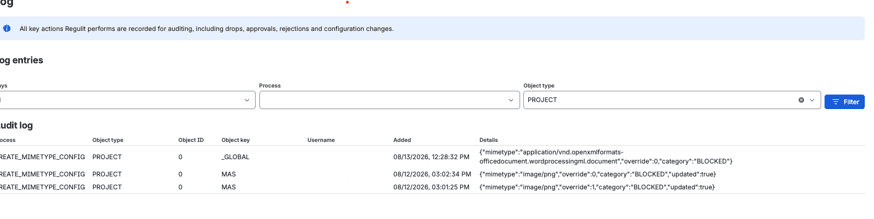
Every removal is commented and logged.
REGULIT checks each attachment right after the upload. A file that breaks the rule comes off the work item, a comment names the file and the rule, and the log records file, type, rule, person and time.
A Forge app cannot sit in front of the upload, so the file is on the work item for a moment before REGULIT removes it.
Show the rule before the upload.
On a Jira Service Management portal, a banner lists the accepted types, so customers pick the right file the first time.

Questions about file type rules
Does a rule apply to files already attached?
No. A rule applies to new uploads. Files already on work items stay.
Do we need cloud storage?
No. Allowed and Blocked work without it. Needs approval needs a connected storage, otherwise it is handled like Blocked.
Does REGULIT stop the upload?
No. It removes the file right after the upload, so it is visible for a moment.
Is the extension or the type checked?
Both. When they disagree, the stricter rule applies. The optional content check also reads the first bytes of the file.
Who can set the rules?
Jira admins and site admins.
Read on
Related questions.
Two more answers to the same kind of question.

Set your first file type rule.
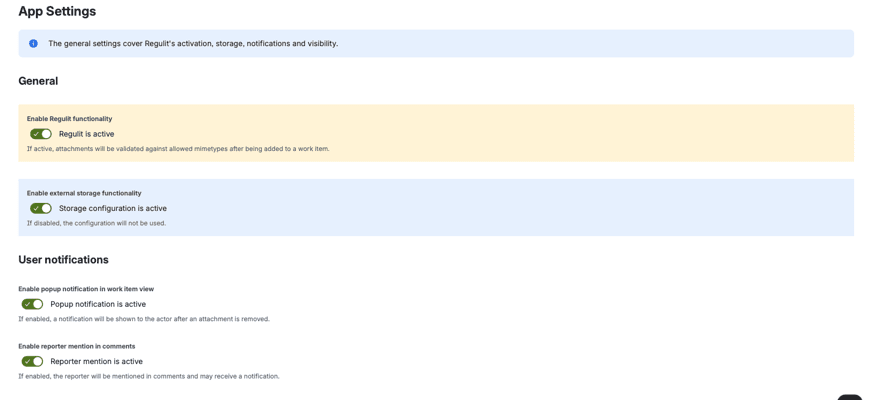
Set the default to Allowed and one type to Blocked in a test space, switch REGULIT on and upload a file. Storage can wait.